Complete Guide to Using Seedream 4.0 Image Generator: Transform Your Images with AI
Master the most advanced AI image editing technology with our comprehensive guide!
Table of Contents
Introduction
The Seedream 4.0 Image Generator represents a revolutionary breakthrough in AI-powered image editing technology. As the most advanced image generation and editing model currently available, the Seedream 4.0 Image Generator allows users to transform any image using simple natural language prompts. This comprehensive guide will walk you through everything you need to know about using the Seedream 4.0 Image Generator at https://seedreams.co/.
What is Seedream 4.0 Image Generator?
The Seedream 4.0 Image Generator is a cutting-edge AI model that surpasses traditional image editing tools by offering:
Edit images using simple text commands
Maintain perfect character traits across multiple edits
Seamlessly blend edits with original backgrounds
Achieve perfect results in a single attempt
Process multiple images simultaneously
Generate results in milliseconds
Getting Started with Seedream 4.0 Image Generator
Step 1: Access the Platform
- Visit https://seedreams.co/
- Click "Start Free" to begin using the Seedream 4.0 Image Generator
- No registration required for basic features
- The platform supports multiple languages including English, Chinese, German, Spanish, French, Japanese, and Korean
Step 2: Understanding the Interface
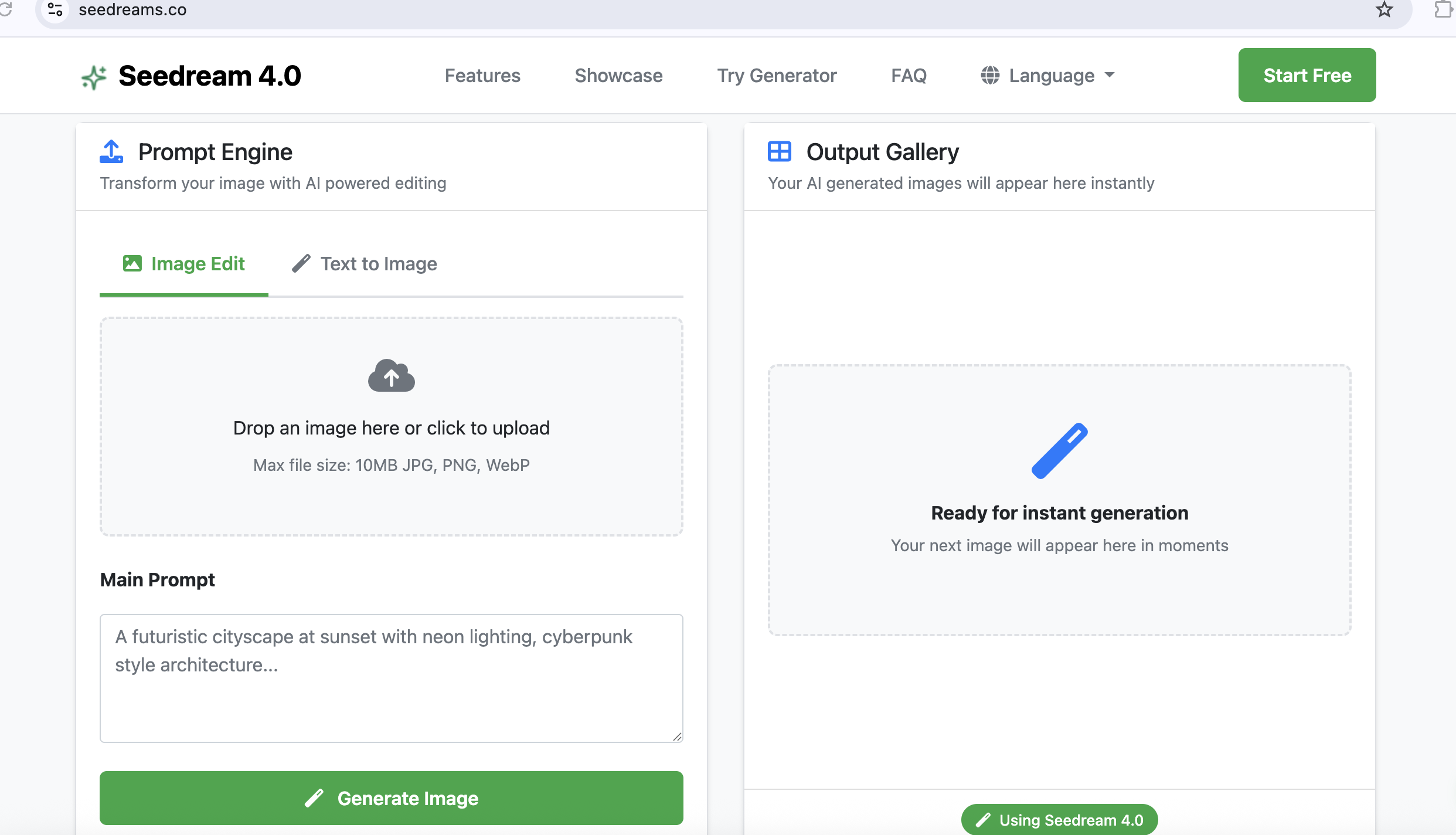
The Seedream 4.0 Image Generator interface is designed for simplicity and efficiency:
- Prompt Engine: Where you input your editing instructions
- Image Upload Area: Drag and drop or click to upload images
- Output Gallery: View your generated results instantly
- Style Options: Choose from Portrait, Landscape, or Square formats
How to Use Image Edit Mode
Uploading Your Image
- Supported Formats: JPG, PNG, WebP
- File Size Limit: Maximum 10MB
- Upload Method: Drag and drop or click "Drop an image here or click to upload"
Writing Effective Prompts
The Seedream 4.0 Image Generator excels at understanding natural language. Here are some proven prompt strategies:
Basic Prompts
• "Transform this picture into a beach vacation scene, with the sea, the beach, the parasol, and sitting on a deck chair"
• "Change the background to a snowy mountain landscape"
• "Add a sunset sky with warm colors"
Advanced Prompts
• "Fix scratches and damage, and colorize old photos"
• "Make this person look like they're in a professional office setting"
• "Create a fantasy version of this landscape with magical elements"
Generating Your Image
- Enter your prompt in the "Main Prompt" field
- Optionally add an "Image Description" for better context
- Click "Generate Image"
- Wait for AI processing (usually takes seconds)
- View results in the Output Gallery
How to Use Text to Image Mode
The Seedream 4.0 Image Generator also creates images from scratch using text descriptions:
Creating from Text
- Select "Text to Image" mode
- Enter a detailed description of what you want to create
- Choose your preferred aspect ratio
- Click "Generate Image"
Example Text Prompts
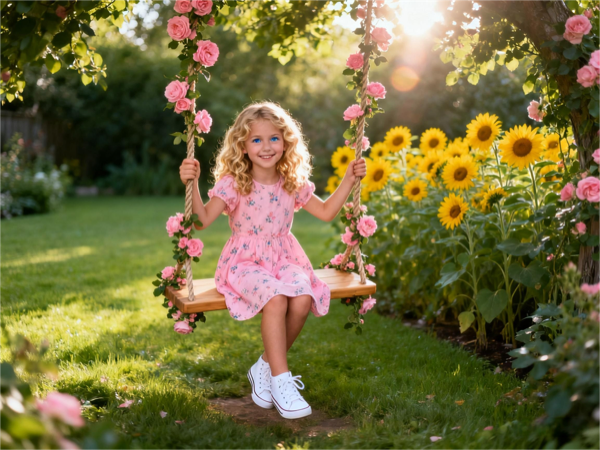
• "Generate a little girl of 8-9 years old, sitting on a swing in the garden"
• "Create a 1:1 cute cartoon dog avatar"
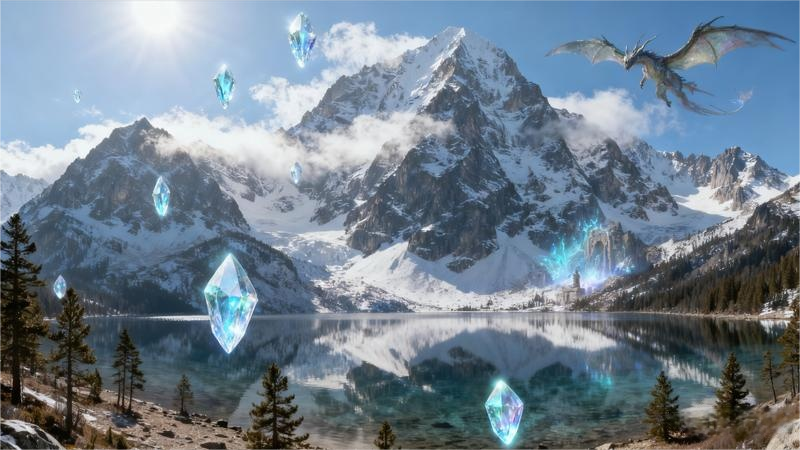
• "Generate a mountain landscape with crystal clear lake and majestic peaks"
• "Create a modern minimalist living room with large windows"
Advanced Features of Seedream 4.0 Image Generator
Character Consistency
The Seedream 4.0 Image Generator excels at maintaining character consistency:
- Upload the same character image for multiple edits
- Use consistent descriptive language in your prompts
- Reference previous edits when creating new variations
- Maintain the same style and lighting across edits
Scene Preservation
For seamless background integration:
- Describe existing scene elements in your prompts
- Mention how new elements should blend with the background
- Use terms like "seamlessly integrate" or "naturally blend"
- Reference the original lighting and atmosphere
One-Shot Editing
Achieve perfect results in a single attempt:
- Be very specific in your prompts
- Include all desired elements in one description
- Mention the final look you want to achieve
- Use detailed, descriptive language
Practical Use Cases
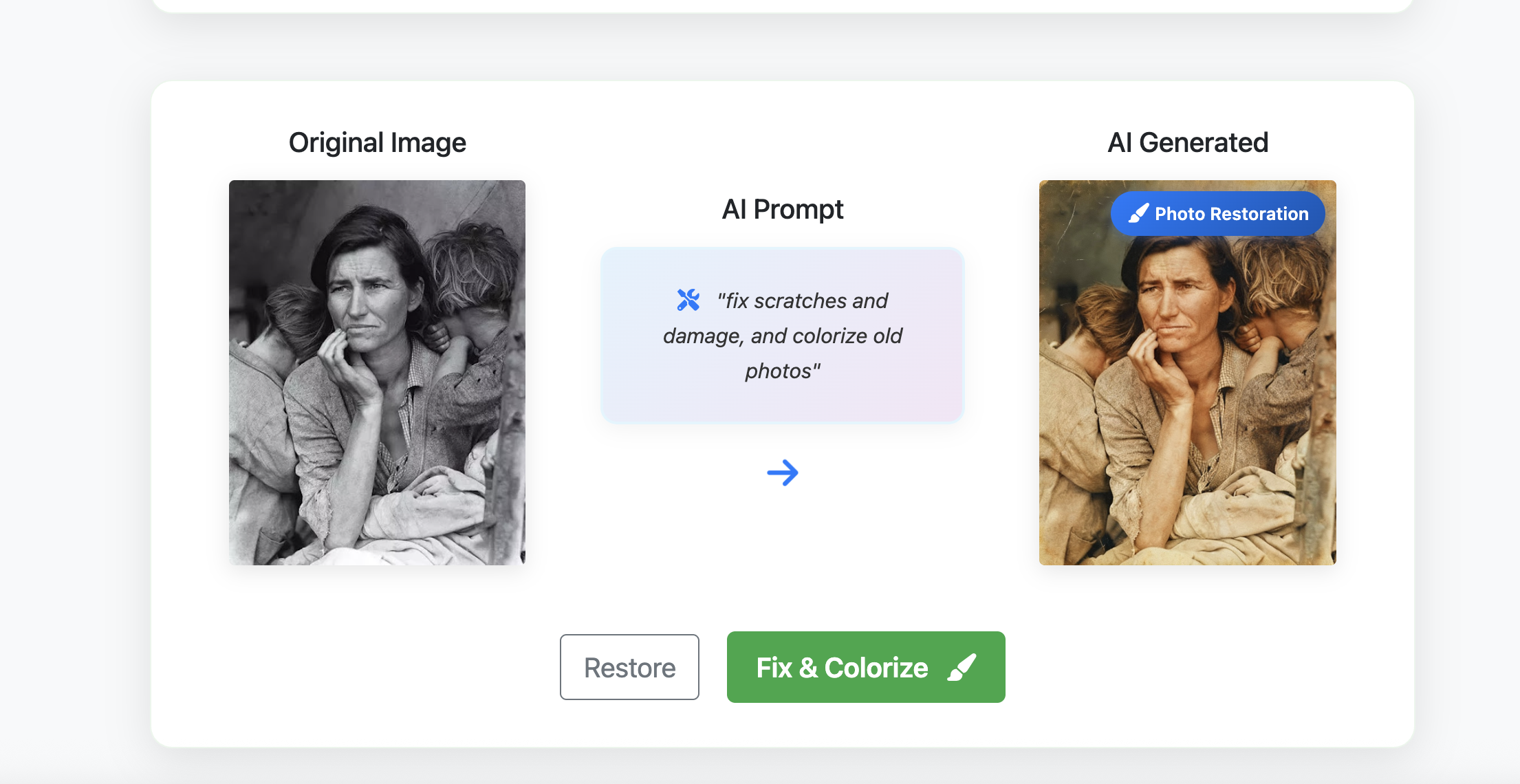
1. Photo Restoration
"Fix scratches and damage, and colorize old photos"
- Upload high-resolution scans when possible
- Be specific about damage types
- Mention desired color palette
2. Social Media Content
• "Create a 1:1 Instagram post with vibrant colors and modern design"
• "Generate a LinkedIn professional headshot with clean background"
• "Make a TikTok-style video thumbnail with bold text overlay"
3. Marketing Materials
• "Transform this product photo into a lifestyle scene with happy customers"
• "Create a banner ad with this product in a luxury setting"
• "Generate a before/after comparison image"
4. Creative Projects
• "Turn this sketch into a photorealistic painting"
• "Create a fantasy version of this landscape with magical elements"
• "Generate a vintage poster style from this modern photo"
Tips for Better Results
Writing Effective Prompts
- Be Specific: Instead of "make it better," say "add warm lighting and enhance colors"
- Use Descriptive Language: "vibrant," "dramatic," "soft," "professional"
- Mention Technical Details: "high resolution," "sharp focus," "shallow depth of field"
- Include Style References: "in the style of," "similar to," "inspired by"
Common Mistakes to Avoid
- Vague Descriptions: "Make it look good" is too general
- Conflicting Instructions: Don't ask for both "dark" and "bright" in the same prompt
- Too Many Elements: Focus on 2-3 main changes per edit
- Unrealistic Expectations: Remember that AI has limitations
Troubleshooting Common Issues
Image Quality Issues
Solution:
- Use higher resolution source images
- Add "high resolution" or "sharp details" to your prompt
- Try regenerating with different wording
Unexpected Results
Solution:
- Rewrite your prompt more clearly
- Break complex requests into simpler steps
- Use more specific descriptive words
Processing Errors
Solution:
- Check file size (must be under 10MB)
- Ensure supported format (JPG, PNG, WebP)
- Try with a simpler prompt first
Commercial Use and Licensing
The Seedream 4.0 Image Generator is perfect for commercial projects:
- Marketing Materials: Create consistent content for social media and advertising
- Product Photography: Generate professional product showcase images
- AI UGC Content: Create consistent AI-generated content for campaigns
- Professional Workflows: Integrate into your creative process
Performance Statistics
The Seedream 4.0 Image Generator delivers impressive speed:
Partner Integrations
The Seedream 4.0 Image Generator is enhanced by industry partnerships:
- Integration: Advanced features powered by technology
- Hugging Face Models: Leveraging open-source community best practices
- Professional APIs: Powerful integration capabilities for developers
Frequently Asked Questions
Conclusion
The Seedream 4.0 Image Generator represents the future of AI-powered image editing. With its natural language interface, lightning-fast processing, and superior results, it's revolutionizing how we create and edit visual content.
Whether you're a beginner looking to enhance personal photos or a professional creating marketing materials, the Seedream 4.0 Image Generator provides the tools you need to bring your creative vision to life. The best part? You can start using it completely free right now.